
Printing, copying and scanning
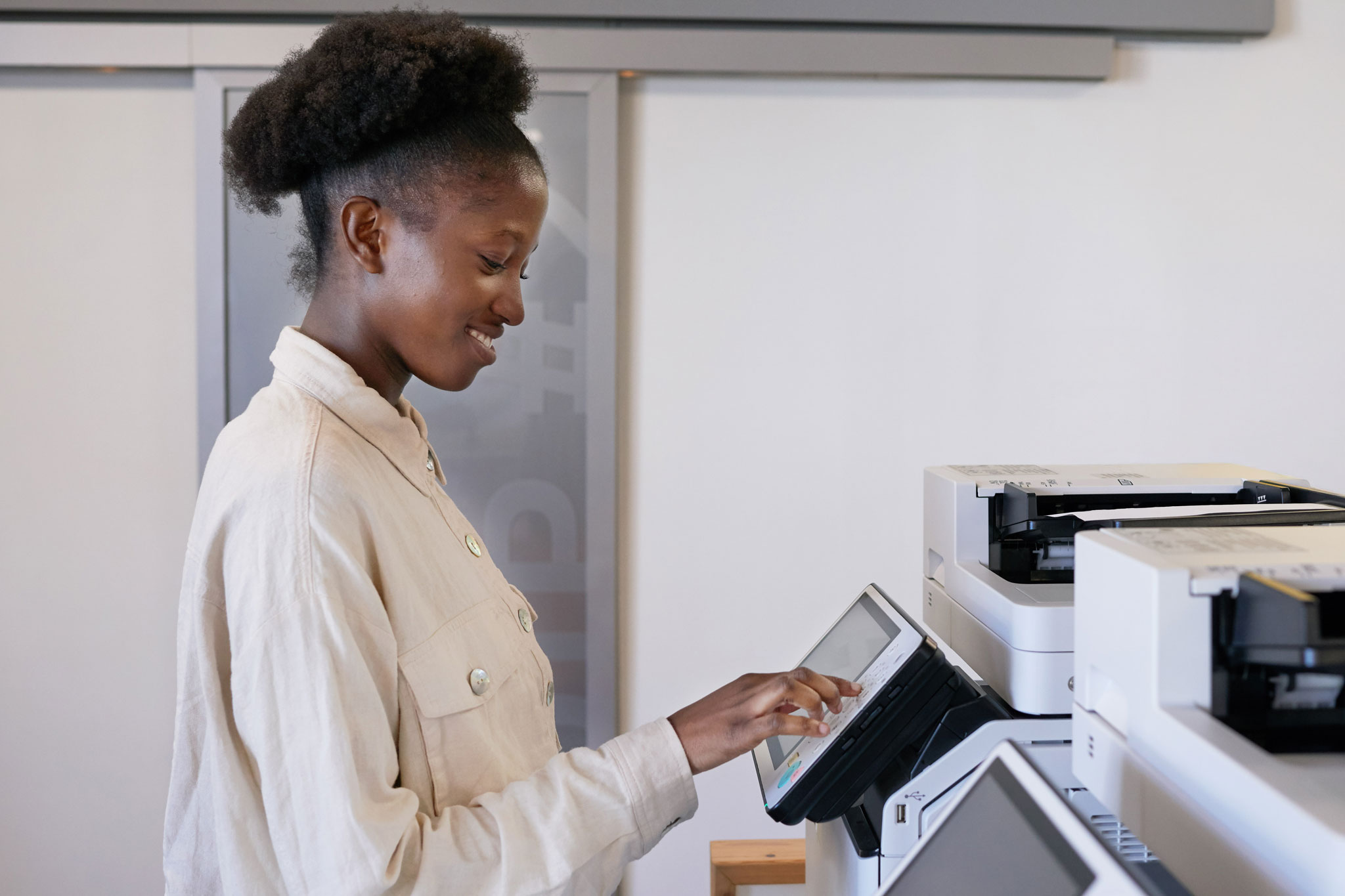
All printing, photocopying and scanning in the La Trobe University Library is managed through MyPrint.
In MyPrint, you can check your printing balance and review/cancel your print jobs. You can also upload a document to print without the need to install print drivers.
Note: If you're not using a Library computer, you will need to be connected to the Library's network or have a valid University Virtual Private Network (VPN) connection to access MyPrint.
Your MyPrint account
Use your La Trobe student ID number (e.g. 12345678) or the part of your username before the '@' symbol (e.g. jBloggs) along with your standard La Trobe password to sign into the printers/photocopiers in the Library or to access MyPrint.
You can also use your student/staff ID card with a printer's card reader to sign in automatically (though you will need to enter your details the very first time you sign in).
Use your LTM username (e.g. LTM7654321) and your La Trobe College Australia password to sign into the printers/photocopiers in the Library or to access MyPrint.
You can also use your student/staff ID card with a printer's card reader to sign in automatically (though you will need to enter your details the very first time you sign in).
You will need a MyPrint account in order to print, photocopy or scan in the Library. Use this account to sign in to the printers/photocopiers in the Library.
The first time you sign in to a printer/photocopier, you will be asked to associate a card with your account. This must be a card that contains a microchip (e.g. your student/staff card or a Myki card). You will then be able to use that card with a printer's card reader to sign in automatically.
To disassociate a card from your MyPrint account, email myprint@latrobe.edu.au and provide the name that appears on the printer touchpad when you tap the card. Request that the card be disassociated from your account. You will receive an email confirmation once the request has been processed.
Note: Your MyPrint account is separate from your Library account.
How to print, copy and scan
Printing
You can print from any of the Library computers or from your own device when connected to the Library's network or the University VPN.
If you are printing from your own device, you will either need to print via MyPrint (by uploading a file) or you will need to install the appropriate printer driver (see the instructions for students and staff) to print directly from an application (e.g. Microsoft Word).
Note: If you are not a La Trobe student or staff member, you can only print from a Library guest computer via MyPrint.
To print directly from an application, follow the process below.
-
With your document or image open, select the Print option (e.g. select 'File > Print').
-
Select one of the following printers:
- FindMe-BW - for black and white printing
- FindMe-Colour - for colour printing
- Large-Format-BW - for black and white printing on A1 or A2 paper (only at the Melbourne (Bundoora) campus library)
- Large-Format-Colour - for colour printing on A1 or A2 paper (only at the Melbourne (Bundoora) campus library)
Note: If you do not see these options on your own device, please follow the instructions for staff or students to install the appropriate printer driver.
-
Set any printing options that you require (e.g. single- or double-sided), and then select Print to send the print job to MyPrint.
-
Sign in to a Library printer, select the print job, and select Print to begin printing.
Note: If you have insufficient funds in your MyPrint account, you will need to top up your balance in order to print.
To print a file on your computer, follow the process below.
-
Sign into MyPrint using your account credentials.
-
Select Web Print from the menu.
-
Select Submit a job and then select one of the following printers:
- FindMe-BW (virtual) – for black and white printing
- FindMe-Colour (virtual) – for colour printing
Note: All print jobs via Web Print will be A4 double-sided.
-
Select Print Options and Account Selection and then specify how many copies you would like to print.
-
Select Upload Documents and then upload the file from your computer.
Note: You can upload multiple files in this step, which will each appear as a separate print job. -
Select Upload & Complete to create the print job.
Note: Once the print job has been created, it will appear in MyPrint as a job pending release. -
Sign in to a Library printer, select the print job, and select Print to begin printing.
Note: If you have insufficient funds in your MyPrint account, you will need to top up your balance in order to print.
Photocopying
To photocopy, follow the process below.
-
Place the item you would like to copy face down on the printer's photocopy screen or, if you have multiple pages to copy, you can place them face up in the printer's document feeder.
-
Log in to the printer and select Copy.
Note: You may need to select Device functions before you are presented with the Copy option. -
Set any configuration options (e.g. number of copies) and then select Start to begin copying.
Note: If you have insufficient funds in your MyPrint account, you will need to top up your balance in order to photocopy.
Scanning
There is no cost for scanning, but you will need to log in to the scanner with your MyPrint account.
To scan a document, follow the process below.
-
Place the item you would like to scan on the printer's photocopy screen.
-
Log in to the printer and select Scan.
-
Set any configuration options (e.g. resolution and file format) and then select Start scanning to begin scanning.
Note: If you want to scan multiple items/pages, select the Prompt for more pages checkbox before selecting Start scanning. After each item is scanned, you can then select whether to scan another item or finish. -
You will receive an email with the scanned document.
Note: The email will be sent to the email address associated with your MyPrint account (e.g. your La Trobe email address).
Cost of printing and photocopying
| Print format | Cost per page |
|---|---|
| Black and white A4 single-sided | $0.09 |
| Black and white A4 double-sided | $0.17 |
| Black and white A3 single-sided | $0.14 |
| Black and white A3 double-sided | $0.26 |
| Colour A4 single-sided | $0.42 |
| Colour A4 double-sided | $0.84 |
| Colour A3 single-sided | $0.77 |
| Colour A3 double-sided | $1.54 |
| Black and white A1 or A2 single-sided * | $2.00 |
| Colour A1 or A2 single-sided * | $10.00 |
* Only available at the Melbourne (Bundoora) campus library.
Use this calculator to estimate the cost of a single print job.
Total pages: 1
Total cost: $0.00
Specialist services
La Trobe has several print partners that can provide specialist print services, including printing books, flyers, posters, pull‑up banners and other marketing materials, with some also providing book binding.
Contact the print partner in your area for more information.
Specialty Press
- Website:
- https://specialtypress.com.au
- Email:
- sales@specialtypress.com.au
- Phone:
- 02 6021 3366
- Address:
- 52 Merkel Street,
Thurgoona,
NSW 2640
Bart ‘n’ Print
- Website:
- https://www.bartnprint.com.au
- Email:
- info@bartnprint.com.au
- Phone:
- 03 5441 6600
- Address:
- 20-22 Deborah Street,
Bendigo,
Victoria 3550
Binding service at La Trobe University
The La Trobe Student Association (LTSA) information desk (in the LSU building) can bind printed materials for students at a minimal cost.
IVE Group
- Website:
- https://www.ivegroup.com.au
Complete the print request form and email it to latrobeuni@ivegroup.com.au. IVE Group will contact you to discuss your request.
Jamesprint
- Website:
- https://www.prominentgroup.com.au
- Email:
- sales@jamesprint.com.au
- Phone:
- 03 5021 3222
- Address:
- 7 The Crescent,
Mildura,
Victoria 3500
Prominent Group
- Website:
- https://www.prominentgroup.com.au
- Phone:
- 1300 655 363
- Address:
- 57-61 Drummond Street,
Shepparton,
Victoria 3632
Refunds and support
If you’ve attempted a large print or copying job in the Library and the machine has failed, in most instances, it will register the failure and not charge your account.
If you are experiencing an issue printing, with your account balance or adding funds to your card, please contact Ricoh on 1300 362 577.
If you have completed, discontinued or deferred your studies and would like a refund on money you’ve loaded onto your MyPrint account, please complete the refund request form and email it to myprint@latrobe.edu.au.